On this page
01. What you need before you start02. Install ZKBio Time.Net03. Create the administrator and log in04. Give the K40 Pro its network settings05. Add the K40 Pro in the software06. Set up your company, departments and employees07. Enrol fingerprints08. Sync the data between the software and the K40 Pro09. Set the work hours: timetable, shift and assignment10. Download punches, calculate hours and print reports11. Troubleshooting: when it will not connect or sync12. FAQ
Install ZKBio Time.Net on a Windows PC, register the administrator, set the K40 Pro’s IP address on its Comm. menu, add the device in the software (Device > Device > Add, TCP/IP, port 4370) and press Test Connection. Then add employees with unique IDs, enrol two fingers each, create a timetable and shift, assign it, download the punches and run Calculate to get late, early and overtime reports.
Key takeaways
- Install .NET Framework 4.0 first, then run Setup.exe as administrator.
- PC and K40 Pro must share the same IP range; port 4370 is the usual default.
- Employee IDs must be identical in the software and on the device.
- Enrol two fingers per person.
- Without a timetable, shift and assignment there are no late or overtime reports.
01What you need before you start
Have these ready. Ten minutes of preparation saves an hour of troubleshooting.
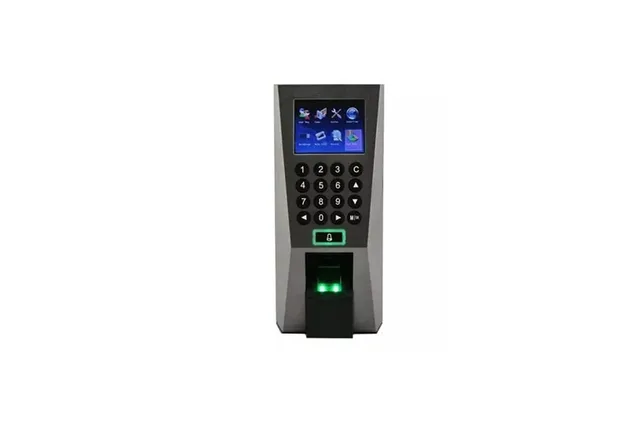
- The ZKTeco K40 Pro, mounted and powered, with a network (Ethernet) cable plugged in.
- A Windows PC: Windows 7, 8, 8.1 or 10, a dual-core 2.0 GHz CPU or better, 4 GB RAM and about 100 GB of free disk space.
- The ZKBio Time.Net installer from ZKTeco. It includes the .NET Framework 4.0 setup file and the SDK the software needs to talk to the device.
- A router or switch that the PC and the K40 Pro both connect to (same office network).
- A list of your staff with a unique employee number for each person. Use the number from payroll.
02Install ZKBio Time.Net
The setup is a normal Windows wizard. Close other programs first and follow these steps in order.
- Install .NET Framework 4.0 first (the file
dotNetFx40_Full_x86_x64.execomes with the installer). The software will not install without it. - If an older version of the software is on the PC, uninstall it and restart the computer.
- Right-click
Setup.exeand choose Run as administrator. - Pick your language and click OK.
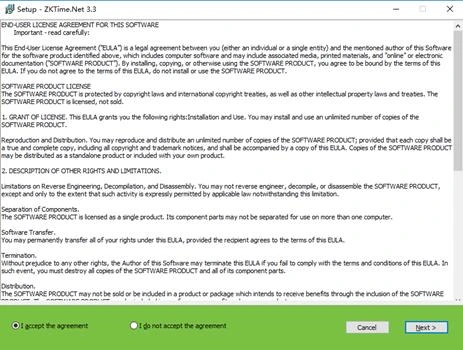
- Read the licence, choose I accept the agreement and click Next.
- Keep the default install folder (or browse to another drive), click Next, keep the components ticked and click Next again.
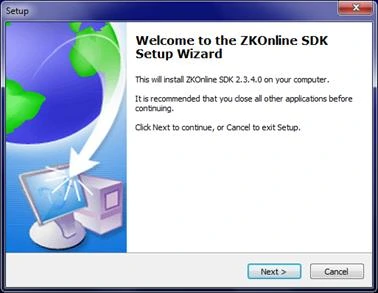
- Choose where the shortcuts go, click Next and then Install. When Windows asks, allow the ZKTeco communication SDK to install.
- If Windows Firewall asks about the program, choose Allow. Blocking it is the most common reason the PC cannot see the device later.
03Create the administrator and log in
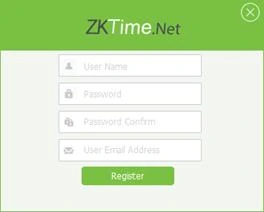
Open the program from the desktop shortcut or from Start > Programs > ZKTime.Net. The first time, there are no users yet, so it asks you to register the administrator.
- Type a User Name and a Password, repeat the password and enter a real email address.
- Click Register.
- Write the password down and keep it safe. The email is what lets you recover it later.
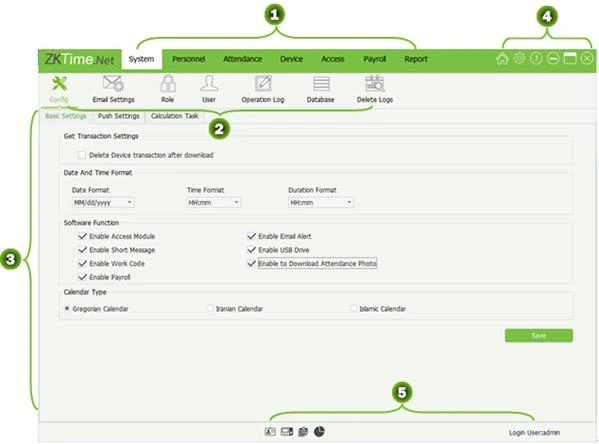
After login you land on the main screen. Learn these top tabs now, because the rest of this guide moves between them: System (settings and users), Personnel (company, departments, employees), Attendance (rules, timetables, shifts, calculate), Device (your terminals and syncing), Access, Payroll and Report.
04Give the K40 Pro its network settings
Do this on the terminal itself. The software finds the device by its IP address, so the device and the PC must be on the same network range.
- Press Menu on the K40 Pro and sign in as administrator if asked.
- Open Comm. (communication) and then Ethernet. Menu names can differ slightly between firmware versions.
- Look at the IP Address, Subnet Mask and Gateway. Your PC and the device must share the same first three numbers, for example PC
192.168.1.10and device192.168.1.201. - If the device is on a different range, change its IP to a free address in your office range. Never use an address another device already has.
- Note the Port (the usual default is 4370) and the Comm Key or connection password, if one is set (the default is normally 0, meaning none).
- Set the date and time under Menu > System > Date/Time. Wrong device time means wrong attendance reports.
05Add the K40 Pro in the software
This is the step where the software and the terminal meet. Go to Device > Device and click Add.
- Connection Mode: choose TCP/IP.
- Name: something clear, such as Main Gate K40 Pro.
- IP Address, Port and Password: type what you noted on the device (port 4370, and the Comm Key if you set one).
- Device Mode: leave the default unless your supplier tells you otherwise.
- Status: keep it on Enable. A disabled device cannot send or receive anything.
- Area: pick the area the device belongs to (a device can be in one area only). Create one first under Device > Area > Add if the list is empty, for example Head Office.
- Device Data: for a brand-new device with no users, tick Reset. If the terminal already holds users you want to keep, tick Merge instead.
- Click Test Connection. A green information box means success, and the device details (model, users, fingerprints, records) fill in by themselves.
- Click Save.
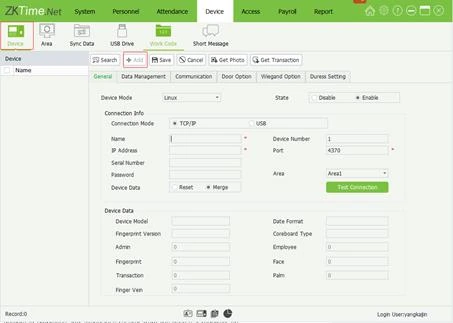
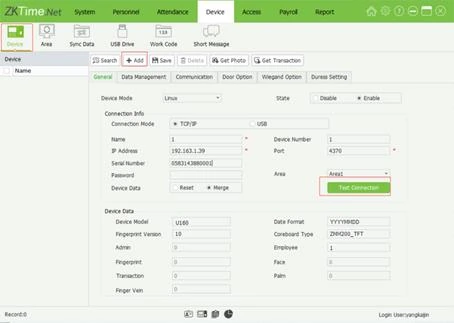
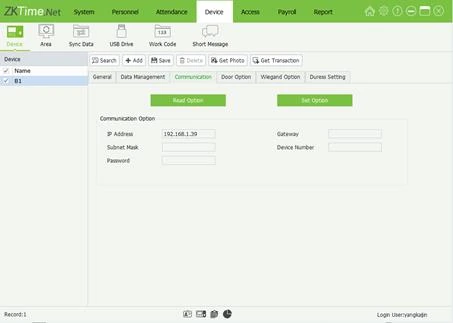
You can read or change the device network settings from the software later: select the device, open the Communication tab, click Read Option, edit and press Set Option.
06Set up your company, departments and employees
Work from the top down so everything has a place.
- Personnel > Company: enter your company name, city, country and, if you like, a logo (270 × 145 pixels) that prints on reports.
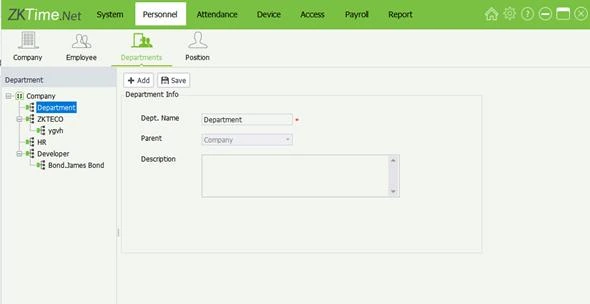
- Personnel > Department > Add: create departments such as Admin, Sales, Security and Cleaning. Use the Parent field to nest them.
- Personnel > Position (optional): job titles.
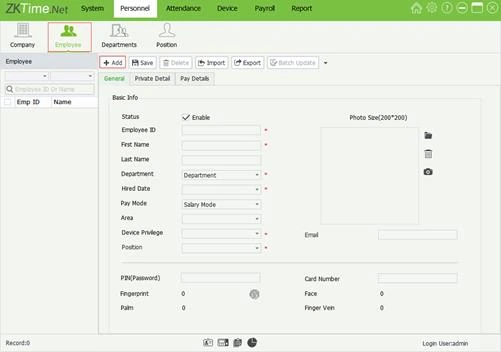
- Personnel > Employee > Add: fill in the Employee ID (a unique number from 1 to 999999999), first and last name, department, hire date and Pay Mode (Wage or Salary).
- Set the employee’s Area to the area your K40 Pro is in, so they are allowed to punch on that device.
- Device Privilege: leave as Employee for normal staff. Use Enroller, Manager or Administrator only for people who should manage the terminal.
- Click Save. Repeat for everyone, or import a spreadsheet from the Employee screen to add many at once.
07Enrol fingerprints
You can enrol at the terminal itself, or from the software using the device as the reader. Either way, enrol at least two fingers per person so a cut or dirty finger does not stop them clocking in.
Option A: enrol from the software
- Open Personnel > Employee and select the person in the list.
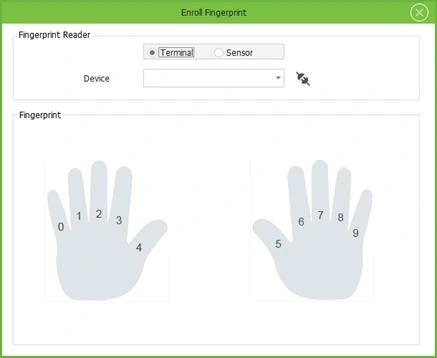
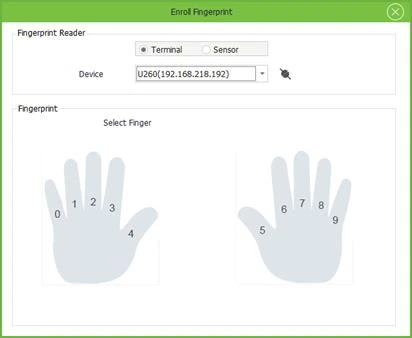
- Click the fingerprint icon next to Fingerprint to open the Enroll Fingerprint window.
- Set the reader to Terminal, choose your K40 Pro from the Device list and click the connect icon. When the connection works, it asks you to select a finger.
- Click a finger on the hand picture. It turns green.
- Press that finger on the K40 Pro sensor three times, firmly and flat, until the screen says Enrolled Successfully.
- Repeat for a second finger. The fingerprints save automatically.
Option B: enrol at the terminal
On the K40 Pro press Menu > User Mgt > New User, enter the same Employee ID you used in the software, then choose Fingerprint and follow the prompts. Later, run a sync (next section) so the software picks up the new fingerprints.
08Sync the data between the software and the K40 Pro
Syncing sends your employees to the terminal (and brings fingerprints enrolled on the terminal back to the software).
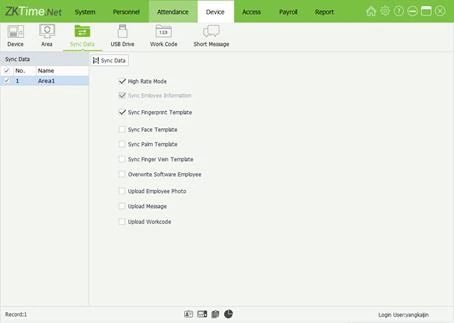
- Go to Device > Sync Data.
- Tick Sync Employee Information and Sync Fingerprint Template (keep High Rate Mode ticked for speed).
- Leave Overwrite previous information after download off when you want the software to be the master copy. Turn it on only when the device holds the correct, newer data.
- Choose the Area that contains your K40 Pro and click Sync Data.
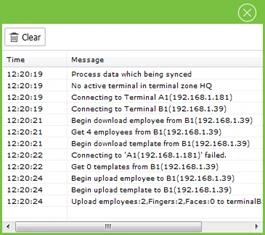
- Watch the progress window. You should see lines such as Connecting to Terminal, Get employees from device and Upload employees, without a failure message.
09Set the work hours: timetable, shift and assignment
The software can only mark someone late, early or on overtime if you tell it the working hours. It is built in three layers: a timetable (one day’s hours), a shift (a repeating pattern of timetables) and an assignment (who works which shift).
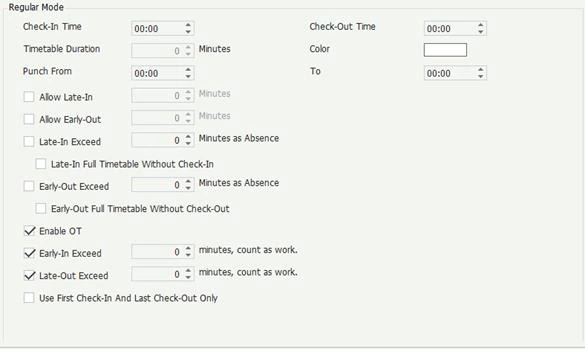
1. Timetable (Attendance > Timetable Setting > Add)
- Name it, for example Office 8 to 5.
- Set Check-In Time and Check-Out Time.
- Set Allow Late-In and Allow Early-Out in minutes, such as a 10-minute grace period.
- Leave Punch from and Punch to on the defaults (two hours before check-in and two hours after check-out), which decide which punches count for this day.
- Tick Enable OT if overtime should be counted, then Save.
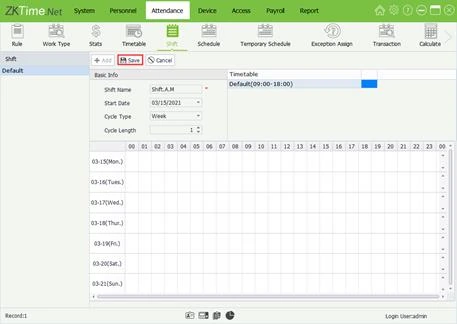
2. Shift (Attendance > Shift > Add)
- Enter a Shift Name, a Start Date, the Cycle Type (Day or Week) and the Cycle Length. A Monday to Friday office uses a 1-week cycle.
- Drag your timetable from the list onto each working day. Days left empty count as days off.
- Click Save.
3. Assign the shift (Attendance > Schedule > Assign Shifts)
- Pick the shift, set the start and end dates of the period, and click Assign To Department or Assign To Employee.
- Select the department or people and confirm.

10Download punches, calculate hours and print reports
This is what you set everything up for. Do it at the end of each day, week or pay period.
- Download the punches: go to Device > Device, select the K40 Pro and click Get Transaction, choosing the date range. A pop-up in the bottom corner shows the download progress. (The software can also fetch records automatically if your PUSH or download settings are on.)
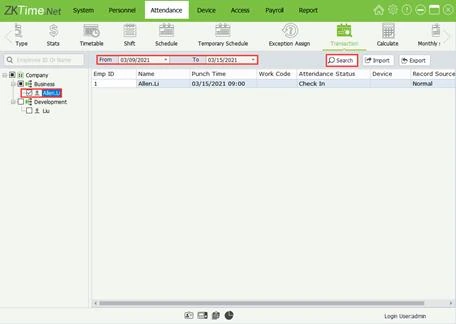
- Check them: Attendance > Transaction shows every raw punch. Pick the employees and the dates, then click Search.
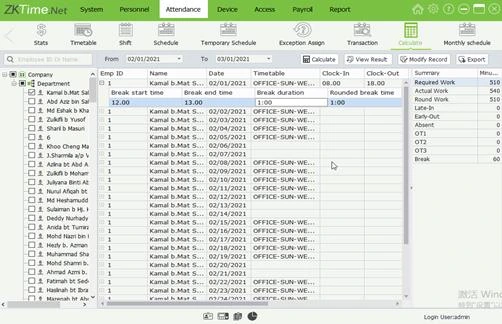
- Calculate: go to Attendance > Calculate, select the employees and dates, and click Calculate. The software applies your timetable rules and shows regular hours, late-in, early-out, absence and overtime.
- Fix mistakes: if someone forgot to punch, use Modify Record to add a punch with a reason. It is logged.
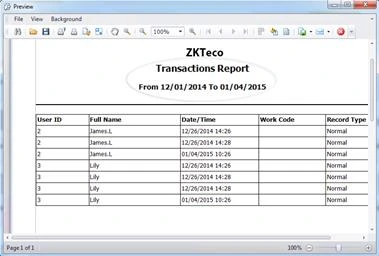
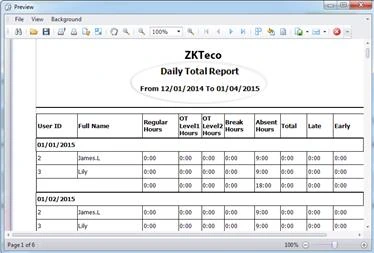
- Print or export: open Report > Attendance Report > View Report and choose Transactions, Daily Total or Time Card. Export to Excel or PDF for payroll.
11Troubleshooting: when it will not connect or sync
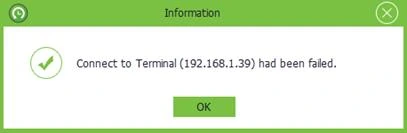
If Test Connection fails, you will see a message like the one below. Check these in order.
- Same network range? The first three numbers of the PC and device IP must match. Confirm the PC address with
ipconfigin a Command Prompt. - Can the PC reach the device? In Command Prompt run
pingfollowed by the device IP. No reply means a cable, switch, IP or subnet problem, not a software one. - Port and password: the software must use the same port (4370 is normal) and the same Comm Key as the device menu.
- Duplicate IP: two devices with one address cause random drop-outs. Give the terminal a fixed, unused address.
- Firewall: allow the ZKTeco program and the SDK, or briefly switch the firewall off to test.
- Device status: it must be set to Enable in the software, or nothing will sync.
- Wrong time or missing punches: fix the device date and time, then download the records again.
Still stuck? See our guides on attendance not syncing, forgotten admin password and resetting a ZKTeco machine, or send us a WhatsApp message and we will help.
12Frequently asked questions
Is ZKBio Time.Net the same as ZKTime.Net?
ZKBio Time.Net is the newer name and build of ZKTeco’s Windows time attendance software. The menus and the order of the steps are the same family. The screenshots here come from ZKTeco’s official ZKTime.Net manual, so colours and icons may look a little different in your version.
Does the K40 Pro need internet?
No. It talks to the PC over your local network (TCP/IP, usually port 4370). Internet is only needed if you choose cloud or remote access.
How many employees and fingerprints can the K40 Pro hold?
Retail listings differ by variant, so confirm the capacity of the exact model you are buying. If you are unsure, ask us and we will check the spec sheet before you pay.
Can I use the software without the PC always on?
Yes. The terminal stores punches itself. Switch on the PC, open the software and press Get Transaction to download them whenever you need reports.
Can Qyvea set it up for me?
Yes. We supply and install ZKTeco terminals, configure the software, enrol your staff and train your HR team. Message us on WhatsApp for a quote.
More K40 Pro and ZKBio Time.Net guides
- How to Set the IP Address on a ZKTeco K40 Pro
- ZKBio Time.Net: How to Add a Device by TCP/IP
- How to Enrol a Fingerprint on a ZKTeco K40 Pro
- ZKBio Time.Net: Create a Timetable and Shift
- ZKBio Time.Net: How to Calculate Attendance
- ZKBio Time.Net: Export Attendance Reports to Excel or PDF
- ZKBio Time.Net: 'Connect to Terminal Failed'. 8 Fixes That Work
- ZKTeco K40 Pro Fingerprint Not Recognised: Causes and Fixes
- ZKBio Time.Net SDK Error: zkemkeeper.dll Not Registered
- ZKTeco K40 Pro vs F18: Attendance Clock or Door Access?
- See all 50 ZKTeco K40 and ZKBio Time.Net guides
Screenshots are from ZKTeco’s official ZKTime.Net user manual and are shown to help you follow the steps. ZKTeco and ZKBio are trademarks of ZKTeco Inc. Menu names on the K40 Pro vary slightly by firmware.