
On this page
01. Find your PC's network range02. Set the IP on the terminal03. Check the connection04. Add it to the software05. Make it stay put06. A typical scenario07. Common mistakes08. Quick checklist09. Frequently asked questions
On the K40 Pro press Menu > Comm. > Ethernet, then set an unused IP in the same range as your PC, with matching subnet mask and gateway. Note the port (4370 by default) and Comm Key, then add the device in ZKBio Time.Net.
Key takeaways
- PC and terminal must share the first three IP numbers.
- Choose an address no other device uses.
- Write down IP, port and Comm Key.
- A fixed IP stops random disconnections.
01Find your PC's network range
On the PC open Command Prompt and type ipconfig. Note the IPv4 address, subnet mask and default gateway. If the PC is 192.168.1.10 with mask 255.255.255.0 and gateway 192.168.1.1, the terminal needs an address like 192.168.1.201 (anything 192.168.1.2 to 254 that nothing else uses).
02Set the IP on the terminal
- Press Menu on the K40 Pro and sign in as administrator if prompted.
- Open Comm. and then Ethernet (names vary slightly with firmware).
- Set IP Address to your chosen free address.
- Set Subnet Mask to match the PC, usually 255.255.255.0.
- Set Gateway to the router address, for example 192.168.1.1.
- Leave DHCP off for a fixed address, then save.
03Check the connection
- From the PC, open Command Prompt and type
ping 192.168.1.201using your terminal address. - Replies mean the network path works.
- No reply means a wrong range, a bad cable or a switch problem; fix that before touching the software.
04Add it to the software
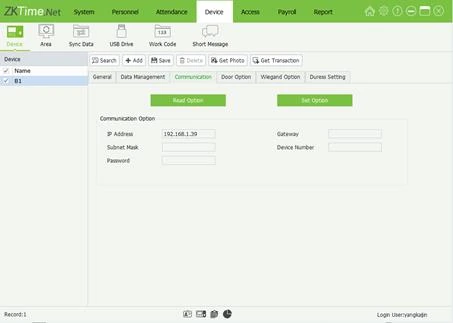
Once ping works, add the device in ZKBio Time.Net under Device > Device > Add with TCP/IP, the same IP and port 4370. Follow the add device guide.
05Make it stay put
Reserve the address in your router (DHCP reservation) or keep it outside the router's automatic range. Stick a label inside the terminal cover with IP, port and the date. The next technician will thank you.
06A typical scenario
A Karen clinic's PC was 192.168.0.15 but the new K40 Pro was still on 192.168.1.201 from the factory, so the software never found it. Changing the terminal to 192.168.0.201 and reserving it in the router took two minutes, and Test Connection turned green.
Illustrative example based on common cases, not a named customer.
07Common mistakes
- Changing the PC IP instead of the terminal and breaking the office internet.
- Choosing an address inside the router's DHCP range so a phone takes it later.
- Mistyping the subnet mask or gateway.
- Forgetting to update the software after changing the IP.
- Not labelling the IP anywhere.
08Quick checklist
- Find the PC range with ipconfig
- Pick a free address outside the DHCP range
- Set IP, mask and gateway on the terminal
- Ping the terminal from the PC
- Update the device in the software
- Label the terminal
09Frequently asked questions
What is the default IP of a ZKTeco terminal?
Many ZKTeco terminals ship with 192.168.1.201, but yours may differ. Check Menu > Comm. on the device. See our default IP guide.
Can I use DHCP?
You can, but the address may change after a power cut and the software will lose the device. A fixed or reserved address is safer.
Do I change the PC IP or the terminal IP?
Usually the terminal, because the PC is already on your office network. Only change the PC if you connect directly with a cable and no router.
The ping works but the software still fails. Why?
Check the port, the Comm Key, the firewall and that the device status is Enable in the software.
This guide is part of our ZKTeco K40 and ZKBio Time.Net series. For the full start-to-finish walkthrough with screenshots, read How to Configure a ZKTeco K40 Pro with ZKBio Time.Net.
ZKTeco and ZKBio are trademarks of ZKTeco Inc. Menu names on the K40 Pro and in the software vary slightly by firmware and software version; where yours differ, look for the nearest match. Qyvea is a ZKTeco reseller and installer in Kenya.
