
On this page
01. Before you calculate02. Run it03. Read the results04. Spot-check05. When results look wrong06. A typical scenario07. Common mistakes08. Quick checklist09. Frequently asked questions
Download punches, make sure shifts are assigned, then open Attendance > Calculate, choose the employees and dates and click Calculate. Review the totals, fix mistakes and print reports.
Key takeaways
- Needs downloaded punches and an assigned shift.
- Select the right employees and dates.
- Re-run after any edit.
- Check a sample by hand.
01Before you calculate
- Punches downloaded (download guide).
- Timetable and shift built and assigned (setup).
- Holidays and leave entered if relevant.
02Run it
- Open Attendance > Calculate.
- Select the employees or departments.
- Set the start and end dates.
- Click Calculate.
- Wait for the confirmation message.
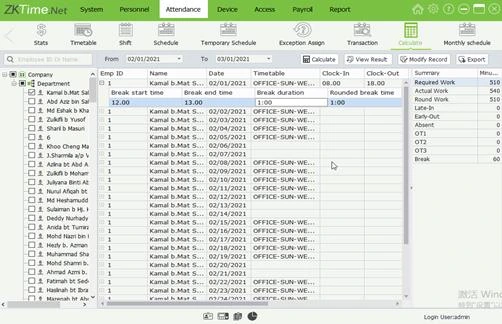
03Read the results
- Regular hours: time inside the timetable.
- Late-in: minutes after check-in beyond grace.
- Early-out: leaving before check-out beyond grace.
- Absence: scheduled days with no valid punches.
- Overtime: extra time if OT is enabled.
04Spot-check
Pick three employees, compare their raw punches in Attendance > Transaction with the calculated hours and make sure the rules behave as you expect. Fix timetable grace minutes if everyone looks late by the same amount.
05When results look wrong
Common causes are no shift assigned, a wrong terminal clock, missing punches or a punch window that excludes real times. See absent though punched and wrong punch times.
06A typical scenario
A manager insisted staff arrived on time but reports showed lateness. Comparing raw punches with the result showed the timetable check-in was 8:00 while the office opened at 8:30. Fixing the timetable and recalculating corrected the whole month.
Illustrative example based on common cases, not a named customer.
07Common mistakes
- Calculating without assigning a shift.
- Calculating before downloading.
- Selecting the wrong dates.
- Not rechecking after edits.
- Trusting results without a spot-check.
08Quick checklist
- Punches downloaded
- Shifts assigned
- Holidays entered
- Correct dates selected
- Calculate run
- Spot-check three people
09Frequently asked questions
Do I have to calculate every time?
Yes, after new punches, edits or rule changes.
Does Calculate change the raw punches?
No. It only produces results from them.
Can I calculate for one person?
Yes, select just that employee.
How far back can I calculate?
As far as you have punches and shift assignments.
This guide is part of our ZKTeco K40 and ZKBio Time.Net series. For the full start-to-finish walkthrough with screenshots, read How to Configure a ZKTeco K40 Pro with ZKBio Time.Net.
ZKTeco and ZKBio are trademarks of ZKTeco Inc. Menu names on the K40 Pro and in the software vary slightly by firmware and software version; where yours differ, look for the nearest match. Qyvea is a ZKTeco reseller and installer in Kenya.
