
On this page
01. Before you start02. Fill the Add Device form03. Reset or Merge?04. Reading the result05. Next steps06. A typical scenario07. Common mistakes08. Quick checklist09. Frequently asked questions
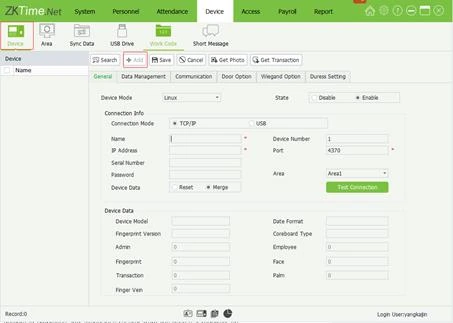
Open Device > Device > Add, choose TCP/IP, name the device, type its IP, port 4370 and Comm Key, pick an area, choose Reset (new device) or Merge (device already has users) and press Test Connection, then Save.
Key takeaways
- Create an Area before adding the device.
- TCP/IP, port 4370 and matching Comm Key.
- Reset wipes device users; Merge keeps them.
- Press Test Connection before Save.
01Before you start
- The terminal has a correct IP (see set the IP).
- Ping from the PC works.
- You have created at least one area under Device > Area > Add, for example Head Office.
02Fill the Add Device form
- Connection Mode: TCP/IP.
- Name: something clear such as Main Gate K40 Pro.
- IP address, Port and Password: as on the terminal.
- Status: leave it on Enable.
- Area: select the area the device belongs to.
- Device Data: choose Reset for a new terminal with no users, or Merge to keep users already on it.
- Click Test Connection.
- Click Save.
03Reset or Merge?
Reset clears the terminal's users in favour of the software's copy. Merge combines what is on the terminal with the software. Pick Merge if the terminal already holds fingerprints you want to keep; pick Reset for a new or test device. If unsure, download the terminal's data by USB first as a backup.
04Reading the result
A green information box with model, user, fingerprint and record counts means success. A failure box means the connection did not complete; see Connect to Terminal failed.
05Next steps
Add departments and employees (departments and areas), sync them to the terminal, then set up shifts.
06A typical scenario
A Lavington hospital's IT officer added a K40 Pro, ticked Reset by mistake and wiped the 40 users already on it. Next time they chose Merge, and the existing users were kept. Choosing the data option deliberately is the whole lesson of this screen.
Illustrative example based on common cases, not a named customer.
07Common mistakes
- Ticking Reset on a terminal that already has users.
- Skipping Test Connection before Save.
- Creating no area, then finding Save is blocked.
- Leaving the status as Disable.
- Duplicating the device under two names.
08Quick checklist
- Area created
- Terminal IP reachable by ping
- TCP/IP, IP, port, Comm Key entered
- Status Enable
- Reset or Merge chosen on purpose
- Test Connection green, then Save
09Frequently asked questions
Can I add the device without an area?
No. A device must belong to one area, so create it first.
What if Test Connection works but Save fails?
Check that the device name is unique and the status is Enable. Then restart the software as administrator.
Can I add the same device twice?
No. Each IP and serial number should be added once.
Can one device be in two areas?
No. A device belongs to one area only.
This guide is part of our ZKTeco K40 and ZKBio Time.Net series. For the full start-to-finish walkthrough with screenshots, read How to Configure a ZKTeco K40 Pro with ZKBio Time.Net.
ZKTeco and ZKBio are trademarks of ZKTeco Inc. Menu names on the K40 Pro and in the software vary slightly by firmware and software version; where yours differ, look for the nearest match. Qyvea is a ZKTeco reseller and installer in Kenya.
