
On this page
01. Create the timetable02. Create the shift03. Typical patterns04. Then assign05. Grace minutes06. A typical scenario07. Common mistakes08. Quick checklist09. Frequently asked questions
Go to Attendance > Timetable Setting > Add to set check-in, check-out and grace minutes, then Attendance > Shift > Add to give the shift a cycle and drag the timetable onto each working day.
Key takeaways
- Timetable = one day; shift = pattern of days.
- Set grace minutes for late-in and early-out.
- Tick Enable OT if overtime counts.
- A Monday to Friday office uses a 1-week cycle.
01Create the timetable
- Open Attendance > Timetable Setting > Add.
- Name it, for example Office 8 to 5.
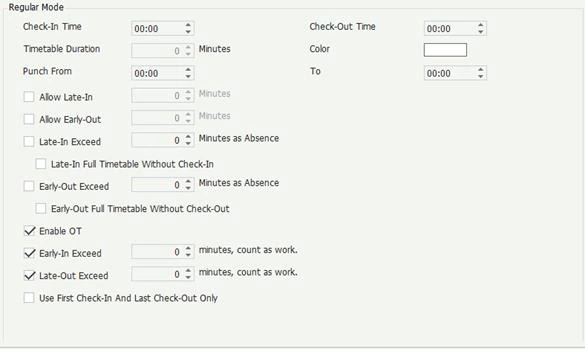
- Set Check-In Time and Check-Out Time.
- Set Allow Late-In and Allow Early-Out in minutes.
- Leave the punch-from and punch-to windows on defaults (two hours either side).
- Tick Enable OT if needed and Save.
02Create the shift
- Open Attendance > Shift > Add.
- Name the shift and pick a start date.
- Choose cycle type (Day or Week) and length.
- Drag the timetable onto each working day. Empty days are days off.
- Save.
03Typical patterns
- Office: 1-week cycle, Monday to Friday 8 to 5.
- Retail: 1-week cycle with a shorter Sunday timetable.
- Security: 3-day cycle of day, night, rest. See night shift setup.
04Then assign
Nothing happens until you assign the shift. See assign a shift.
05Grace minutes
A ten-minute grace period stops a one-minute delay from becoming a disciplinary issue. Agree the policy with HR first.
06A typical scenario
A restaurant needed Monday to Friday 9 to 6 and a shorter Saturday 9 to 2. They made two timetables and one shift with a 1-week cycle, dragging each onto its days. Reports then showed Saturday lateness against the correct hours.
Illustrative example based on common cases, not a named customer.
07Common mistakes
- Building a timetable but never a shift.
- Grace minutes set too tight or too loose.
- Forgetting punch-in and punch-out windows.
- Leaving OT on when it is not paid.
- Using one shift for different rosters.
08Quick checklist
- Timetable per working day type
- Grace minutes agreed
- Shift cycle correct
- Timetables dragged to days
- Shift assigned
- Test calculate on one person
09Frequently asked questions
What is the difference between timetable and shift?
Timetable is one working day. A shift is a repeating pattern of timetables.
Can I have different hours on Saturday?
Yes, create a second timetable and drag it onto Saturday.
How do punch windows work?
They decide which punches count for a day, such as two hours before check-in.
Where do I set overtime rules?
Tick Enable OT in the timetable and set your OT settings. See overtime calculation.
This guide is part of our ZKTeco K40 and ZKBio Time.Net series. For the full start-to-finish walkthrough with screenshots, read How to Configure a ZKTeco K40 Pro with ZKBio Time.Net.
ZKTeco and ZKBio are trademarks of ZKTeco Inc. Menu names on the K40 Pro and in the software vary slightly by firmware and software version; where yours differ, look for the nearest match. Qyvea is a ZKTeco reseller and installer in Kenya.
