Quick answer
Choose an attendance terminal by the number of staff, the working environment, how it connects, and the software it works with. The cheapest device that doesn't match your environment (dusty hands, outdoor gate, 300 staff at 7am) ends up costing more in queues and missing punches.
Real products, live prices, in stock now
See the actual productsLive prices from the Qyvea store
Shop all fingerprint products →Key takeaways
- Check user and log capacity against your staff numbers.
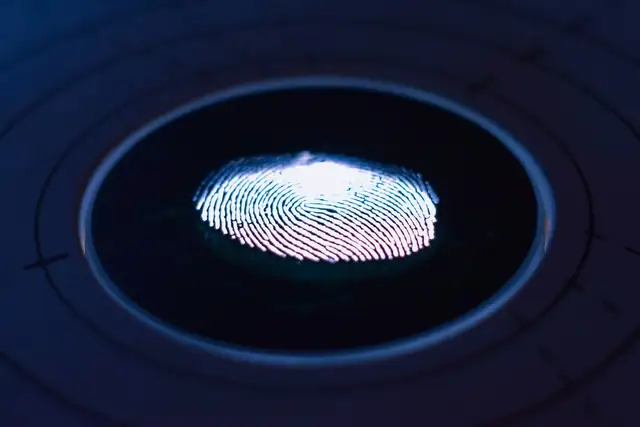
- Match biometric type to the environment.
- Card or PIN backup for people biometrics struggle with.
- Network connection and backup power matter.
- Buy for the software, not just the device.
01The checklist
| Question | Why it matters |
|---|---|
| How many staff? | Terminals have user and log capacity limits |
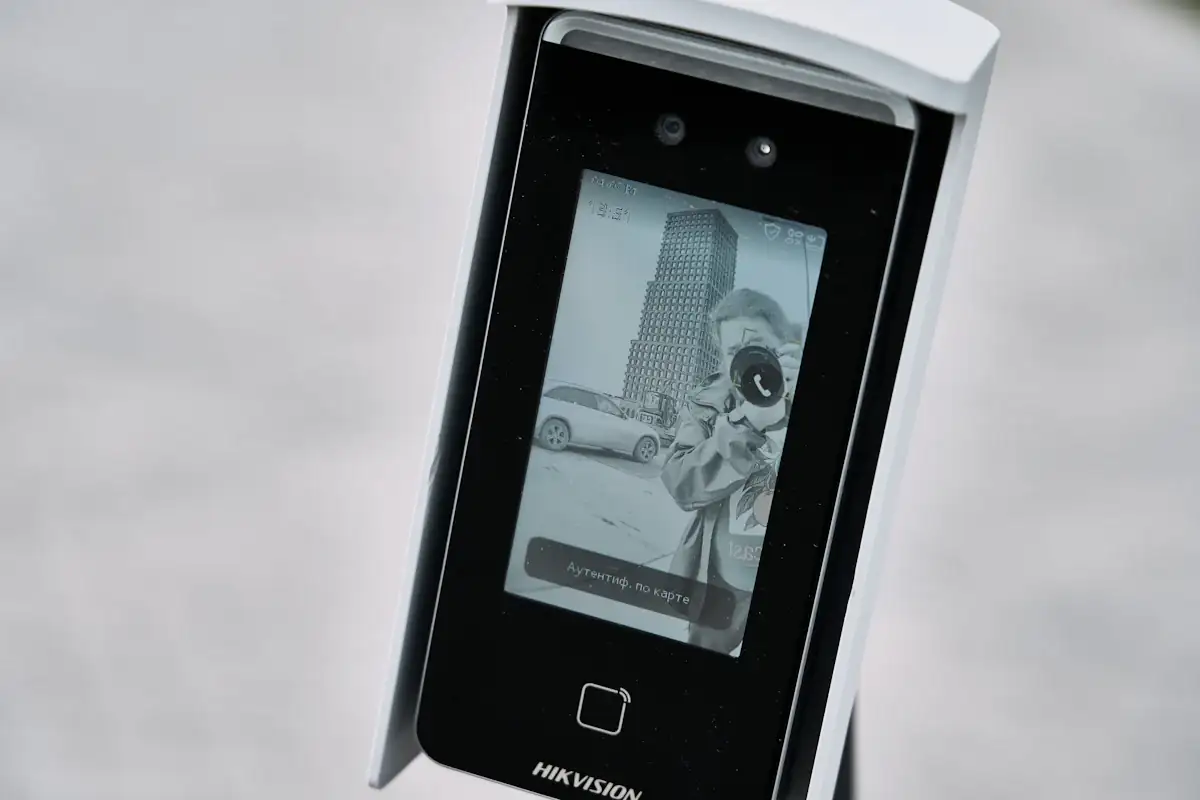
| Office or site work? | Worn/dirty fingers favour face recognition |
| Peak clock-in rush? | Busy shifts need fast terminals or more than one |
| Indoor or outdoor? | Outdoor units need weather rating and shade |
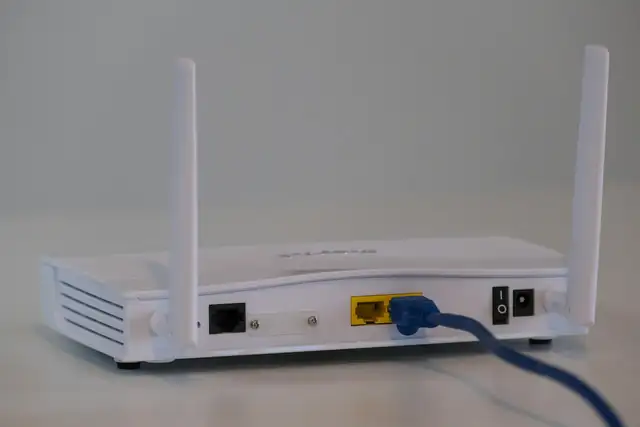
| How will it connect? | Cable, Wi-Fi or mobile; plus backup power |
| Which software? | Reports and payroll export are what you really use |
02Placement
- Where staff naturally pass on arrival
- Out of direct sunlight and rain
- At a comfortable height
- Covered by CCTV to discourage tampering
- Near power and network
Compare real options in best biometric attendance machines.
03After installation
- 01Enrol properlySeveral fingers or a clear face image per person
- 02Set up shiftsMatch real working patterns
- 03Test reportsCheck a week of data before payroll depends on it
- 04Train HRFixing missing punches and exporting reports
04Frequently asked questions
How many employees can one terminal handle?
It depends on the model's capacity and on how many people clock in at the same time. Check both.
Should I choose fingerprint or face?
Fingerprint suits offices; face suits dusty, manual or very busy environments.
Do I need special software?
Most terminals come with attendance software. Check it handles your shift patterns and payroll export.