
On this page
01. Option A: enrol at the terminal02. Option B: enrol from the software03. Press like a pro04. Why two fingers05. After enrolling06. A typical scenario07. Common mistakes08. Quick checklist09. Frequently asked questions
At the K40 Pro press Menu > User Mgt > New User, enter the employee ID, choose Fingerprint and press the same finger three times until it says Enrolled Successfully. Repeat for a second finger. Use the same ID as in the software.
Key takeaways
- Enrol at least two fingers per person.
- Press firmly, flat and in the centre of the sensor.
- Use the same ID as the software.
- Enrol in clean, dry conditions.
01Option A: enrol at the terminal
- Press Menu and sign in as administrator.
- Open User Mgt and choose New User.
- Enter the employee ID. It must match the software exactly.
- Select Fingerprint.
- Press the finger on the sensor three times when prompted, until it confirms.
- Repeat for a second finger, then save.
02Option B: enrol from the software
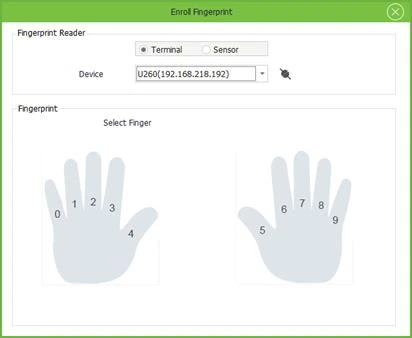
Open Personnel > Employee, select the person, click the fingerprint icon, set the reader to Terminal, choose the K40 Pro and pick a finger on the hand picture. Press it three times on the sensor. The full flow is in the main walkthrough.
03Press like a pro
- Use the index or middle finger of each hand. Thumbs and little fingers are harder to read.
- Place the finger flat, covering the centre of the glass.
- Press with steady, medium pressure. Too light gives a weak print; too hard flattens it.
- Keep the same angle each of the three presses.
- Wipe dirty, oily or very dry fingers first.
04Why two fingers
A cut, plaster or wet hand can stop one finger. Two fingers, ideally from different hands, stop that from blocking someone's day. For workers with worn fingerprints, see worn fingerprints.
05After enrolling
If you enrolled at the terminal, sync the data so the software has the fingerprints. If you enrolled from the software, check the person can punch on the device. If it fails, see fingerprint not recognised.
06A typical scenario
A bakery in Kitengela enrolled workers with floury hands and got constant rejections. Re-enrolling after washing and drying their hands, and adding a second finger each, cut rejections sharply. The terminal was fine; the enrolment quality was the problem.
Illustrative example based on common cases, not a named customer.
07Common mistakes
- Enrolling with a wet, dirty or very dry finger.
- Pressing at an angle or only the fingertip.
- Enrolling one finger only.
- Different ID on the terminal than in the software.
- Rushing the three presses.
08Quick checklist
- Clean, dry hands
- Same ID as the software
- Press flat and firm three times
- Second finger enrolled
- Test a punch
- Sync to the software
09Frequently asked questions
How many fingerprints can one person have?
Several. Two or three fingers is a good habit; the exact limit depends on firmware.
Can I enrol without the software?
Yes. The terminal can enrol users by itself; you sync later.
Why does it say duplicate fingerprint?
That finger is already enrolled under another ID. Delete the wrong record and re-enrol.
Can children or older staff enrol?
Yes, though very light or worn prints may need a different finger or a face/card terminal.
This guide is part of our ZKTeco K40 and ZKBio Time.Net series. For the full start-to-finish walkthrough with screenshots, read How to Configure a ZKTeco K40 Pro with ZKBio Time.Net.
ZKTeco and ZKBio are trademarks of ZKTeco Inc. Menu names on the K40 Pro and in the software vary slightly by firmware and software version; where yours differ, look for the nearest match. Qyvea is a ZKTeco reseller and installer in Kenya.
