
On this page
01. 1. Same network range?02. 2. Does ping reply?03. 3. Port and Comm Key04. 4. Duplicate IP05. 5. Firewall and antivirus06. 6. Device status07. 7. SDK registered?08. 8. Power and lights09. A typical scenario10. Common mistakes11. Quick checklist12. Frequently asked questions
Check in order: same IP range, ping reply, correct port (4370) and Comm Key, no duplicate IP, firewall allows the program, device status Enable, SDK registered, and the terminal powered with its network light on.
Key takeaways
- Ping first: it separates network faults from software faults.
- Port and Comm Key must match the device.
- Firewalls block more connections than faulty terminals.
- Duplicate IPs cause random failure.
011. Same network range?
The first three numbers of the PC and device IP must match, for example both 192.168.1.x. Check the PC with ipconfig and the device under Menu > Comm. See set the IP.
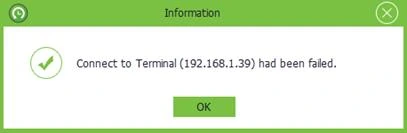
022. Does ping reply?
Run ping 192.168.1.201 with your device IP. No reply means a cable, switch, power or IP problem, not a software one.
033. Port and Comm Key
The software must use the same port (usually 4370) and Comm Key as the device. A wrong Comm Key gives a failure even when ping works.
044. Duplicate IP
Two devices with one address cause erratic failure. See IP conflict.
055. Firewall and antivirus
Allow the ZKTeco program in Windows Defender Firewall for private networks, or pause the firewall briefly to test. Antivirus suites can block the SDK too.
066. Device status
In Device > Device the status must be Enable. A disabled device cannot connect.
077. SDK registered?
If the software cannot use the communication SDK, nothing connects. See SDK error.
088. Power and lights
Check the terminal is on, the network cable is firm and the link light is lit. Try a different port on the switch or another cable.
09A typical scenario
A Kasarani office saw the error every Monday. The cause was a router restart over the weekend that gave the terminal a new DHCP address. A fixed IP and a router reservation ended it.
Illustrative example based on common cases, not a named customer.
10Common mistakes
- Changing settings at random.
- Restarting the PC only.
- Ignoring the firewall.
- Using the wrong Comm Key.
- Skipping the ping test.
11Quick checklist
- Ping the terminal
- Check range
- Port and Comm Key
- Duplicate IP
- Firewall
- SDK
12Frequently asked questions
Why does it work from one PC but not another?
The second PC is on a different range, has a firewall blocking it, or lacks the SDK.
Does the error mean the terminal is dead?
Rarely. Most cases are IP, firewall or cable.
Can I connect without the software?
Yes, by USB drive. See USB download.
Should I reset the terminal?
Only as a last resort. See resetting a ZKTeco machine.
This guide is part of our ZKTeco K40 and ZKBio Time.Net series. For the full start-to-finish walkthrough with screenshots, read How to Configure a ZKTeco K40 Pro with ZKBio Time.Net.
ZKTeco and ZKBio are trademarks of ZKTeco Inc. Menu names on the K40 Pro and in the software vary slightly by firmware and software version; where yours differ, look for the nearest match. Qyvea is a ZKTeco reseller and installer in Kenya.
