
On this page
01. Export steps02. Which format?03. Tidy columns04. Large files05. Keep records06. A typical scenario07. Common mistakes08. Quick checklist09. Frequently asked questions
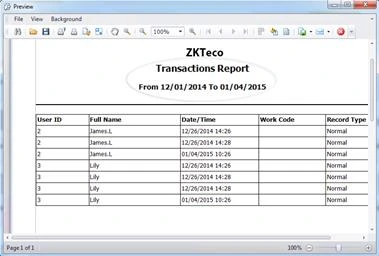
Open Report > Attendance Report > View Report, choose the report type and filters, click Search, then use the Export button to save an Excel, CSV or PDF file.
Key takeaways
- Filter first, then export.
- Excel is best for payroll; PDF for signing.
- Name files with the period.
- Keep a copy with your pay records.
01Export steps
- Open Report > Attendance Report > View Report.
- Choose the report (Daily Total, Transactions or Time Card).
- Set dates and departments.
- Click Search.
- Click Export and choose Excel, CSV or PDF.
- Save with a clear name such as attendance-2026-10-sales.xlsx.
02Which format?
- Excel: payroll calculations and filters.
- CSV: import into another system.
- PDF: signed copies and auditors.
03Tidy columns
Hide columns you do not need before export, or delete them in Excel. Keep Employee ID, name, department, date, regular hours, late, early and overtime.
04Large files
Export month by month or department by department if the file is huge. This also makes it easier for managers to read.
05Keep records
Store exports with payroll for the retention period required by law. See attendance and data protection. Protect the files with a password, as they hold personal data.
06A typical scenario
An HR officer exported the monthly summary to Excel, removed unneeded columns and added a payroll sheet with formulas. Password-protecting the file before emailing it kept staff data safe.
Illustrative example based on common cases, not a named customer.
07Common mistakes
- Exporting before calculating.
- Sending unprotected files by email.
- Leaving hidden sensitive columns.
- Forgetting to name the period.
- Editing the original export.
08Quick checklist
- Calculate first
- Filter correctly
- Export
- Tidy columns
- Password-protect
- Archive
09Frequently asked questions
Does Excel export keep formulas?
No, it exports values. Add your own formulas in Excel.
Why does Excel show dates as numbers?
Format the column as date or text in Excel.
Can I schedule exports?
Some versions can. Otherwise export at fixed times.
Is the file safe to email?
It contains personal data. Password-protect it and send only to people who need it.
This guide is part of our ZKTeco K40 and ZKBio Time.Net series. For the full start-to-finish walkthrough with screenshots, read How to Configure a ZKTeco K40 Pro with ZKBio Time.Net.
ZKTeco and ZKBio are trademarks of ZKTeco Inc. Menu names on the K40 Pro and in the software vary slightly by firmware and software version; where yours differ, look for the nearest match. Qyvea is a ZKTeco reseller and installer in Kenya.
