
On this page
01. Open the report02. What each report shows03. Print or export04. Make it useful05. If the report is empty06. A typical scenario07. Common mistakes08. Quick checklist09. Frequently asked questions
Go to Report > Attendance Report > View Report, choose Daily Total (or Transactions), pick the date and department, search, then print or export.
Key takeaways
- Daily Total gives one line per employee per day.
- Transactions lists every punch.
- Filter by department.
- Export to Excel or PDF.
01Open the report
- Click Report then Attendance Report then View Report.
- Choose Daily Total for hours and status, or Transactions for raw punches.
- Select the date range and department or employees.
- Click Search.
02What each report shows
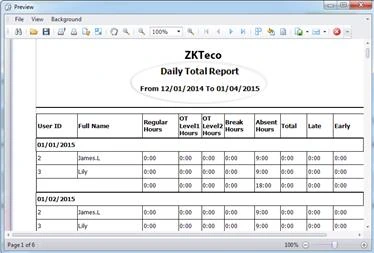
- Daily Total: check-in, check-out, worked hours, late, early, absence, overtime for each day.
- Transactions: exact times of each punch, useful to settle disputes.
- Time Card: a printable monthly card per employee.
03Print or export
Use the print button for a paper copy for the manager, or export to Excel or PDF to email. For Excel steps see export to Excel.
04Make it useful
- Save a standard filter, for example Yesterday, all departments.
- Send it to managers at a fixed time.
- Use the late-and-early view in the late report guide for follow-up.
05If the report is empty
Check that punches were downloaded and calculated for that date. See Calculate.
06A typical scenario
A branch manager received the Daily Total by email every morning at nine. When someone queried a late mark, the Transactions report showed the exact punch time, ending the argument in a minute.
Illustrative example based on common cases, not a named customer.
07Common mistakes
- Running the report before downloading punches.
- Mixing departments in one list.
- Printing without a date range.
- Sending reports to people who do not need them.
- Not securing exported files.
08Quick checklist
- Download
- Calculate
- Choose report
- Filter
- Print or export
- Store securely
09Frequently asked questions
Can the report be emailed automatically?
Some versions support scheduled emails. Otherwise export and send.
Why is there no data for today?
Download the day's punches first with Get Transaction, then calculate.
Can managers see only their own team?
Filter by department, or give limited login rights if your version supports roles.
Can I add the company logo?
Yes, set it under Personnel > Company so it prints on reports.
This guide is part of our ZKTeco K40 and ZKBio Time.Net series. For the full start-to-finish walkthrough with screenshots, read How to Configure a ZKTeco K40 Pro with ZKBio Time.Net.
ZKTeco and ZKBio are trademarks of ZKTeco Inc. Menu names on the K40 Pro and in the software vary slightly by firmware and software version; where yours differ, look for the nearest match. Qyvea is a ZKTeco reseller and installer in Kenya.
