
On this page
01. Check the area02. Check sync options03. Read the log04. Overwrite setting05. Check on the terminal06. A typical scenario07. Common mistakes08. Quick checklist09. Frequently asked questions
Check that the employee is linked to the same area as the device, that Sync Employee Information is ticked, that the right device and area are selected and that the sync log shows no failure lines.
Key takeaways
- Employee area must match device area.
- Tick Sync Employee Information.
- Read the sync log.
- Check the device is online.
01Check the area
A device only receives employees whose area includes it. Open the employee record and confirm the Area. See departments and areas.
02Check sync options
- Open Device > Sync Data.
- Tick Sync Employee Information (and fingerprints if needed).
- Pick the right Area and device.
- Click Sync Data.
03Read the log
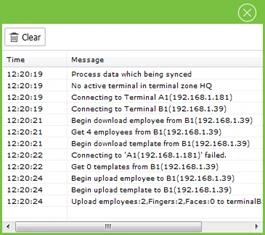
The progress window lists steps such as Connecting to Terminal, Get employees from device and Upload employees. A failure line tells you where it stopped. See connection failed.
04Overwrite setting
The 'Overwrite previous information after download' option decides which side wins. Turn it on only if the device holds the correct, newer data.
05Check on the terminal
On the K40 Pro open Menu > User Mgt and look for the new IDs.
06A typical scenario
New hires were not appearing on a K40 Pro. They had been created without the area. Adding the area and syncing made them appear instantly.
Illustrative example based on common cases, not a named customer.
07Common mistakes
- Missing area.
- Wrong sync options.
- Wrong device selected.
- Offline terminal.
- Ignoring the log.
08Quick checklist
- Check area
- Check options
- Check device
- Sync
- Read log
- Check terminal list
09Frequently asked questions
Does the employee need a fingerprint to upload?
No, but they need one to punch by finger.
Why does the count differ?
Disabled or resigned employees may not upload.
Can I upload one person only?
Sync by selecting that person if your version allows.
Are photos uploaded?
Only on models that support photos.
This guide is part of our ZKTeco K40 and ZKBio Time.Net series. For the full start-to-finish walkthrough with screenshots, read How to Configure a ZKTeco K40 Pro with ZKBio Time.Net.
ZKTeco and ZKBio are trademarks of ZKTeco Inc. Menu names on the K40 Pro and in the software vary slightly by firmware and software version; where yours differ, look for the nearest match. Qyvea is a ZKTeco reseller and installer in Kenya.
