
On this page
01. Prepare the list02. Add one employee03. Add many at once04. Get them onto the terminal05. Common mistakes06. A typical scenario07. Common mistakes08. Quick checklist09. Frequently asked questions
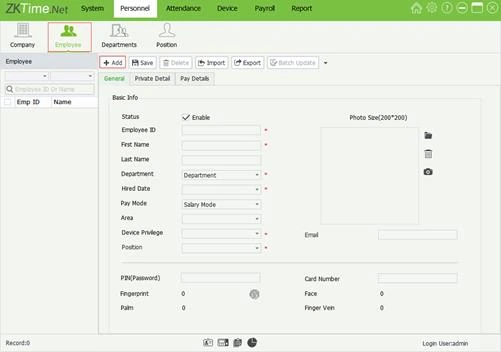
Go to Personnel > Employee > Add, enter a unique Employee ID, name, department and hire date, set Area to the K40 Pro's area, then Save and run Sync Data so the terminal knows the person.
Key takeaways
- Employee ID must be unique and match the terminal.
- Set the Area or they cannot punch on that device.
- Leave privilege as Employee for normal staff.
- Sync after adding.
01Prepare the list
Use the payroll number as the ID. Keep it plain digits, no leading zeros unless you are consistent. Create departments first so each person has a home. See departments and areas.
02Add one employee
- Open Personnel > Employee > Add.
- Type the Employee ID (a unique number).
- Enter first and last name.
- Choose the Department and enter the hire date.
- Set Pay Mode (Wage or Salary) if your version asks.
- Set the Area that holds your terminal.
- Keep Device Privilege as Employee, and click Save.
03Add many at once
For more than a handful, use the import option. See import employees from Excel.
04Get them onto the terminal
Run Device > Sync Data with employee information ticked, for the right area. Then enrol fingerprints (enrol guide).
05Common mistakes
- Different IDs in software and terminal: two people, half the punches. See duplicate IDs.
- Forgetting the area: the person exists but is not allowed on that device.
- Giving everyone Administrator privilege: anyone can then change terminal settings.
06A typical scenario
A security company added 60 guards. Using each guard's payroll number as ID meant payroll matched the attendance reports line for line. A contractor who had used his own numbering earlier needed a clean-up that took a full day.
Illustrative example based on common cases, not a named customer.
07Common mistakes
- Using phone numbers or names as IDs.
- Leaving out the area so the person cannot punch.
- Making many staff administrators.
- Adding staff to the wrong department.
- Not syncing after adding.
08Quick checklist
- Unique ID from payroll
- Department chosen
- Area set
- Privilege as Employee
- Saved and synced
- Fingerprint enrolled
09Frequently asked questions
What is a good employee ID?
The payroll number, in digits only, unique across the company.
Can I change an ID later?
It is risky because old punches keep the old ID. Prefer to keep IDs fixed.
How do I add a casual worker for one day?
Add them as a normal employee and delete or disable them afterwards.
Can the employee punch before I sync?
Not on the terminal unless they were created there. Sync first.
This guide is part of our ZKTeco K40 and ZKBio Time.Net series. For the full start-to-finish walkthrough with screenshots, read How to Configure a ZKTeco K40 Pro with ZKBio Time.Net.
ZKTeco and ZKBio are trademarks of ZKTeco Inc. Menu names on the K40 Pro and in the software vary slightly by firmware and software version; where yours differ, look for the nearest match. Qyvea is a ZKTeco reseller and installer in Kenya.
