
On this page
01. Download02. Check them03. How often04. Why a download does not change the terminal05. Next step06. A typical scenario07. Common mistakes08. Quick checklist09. Frequently asked questions
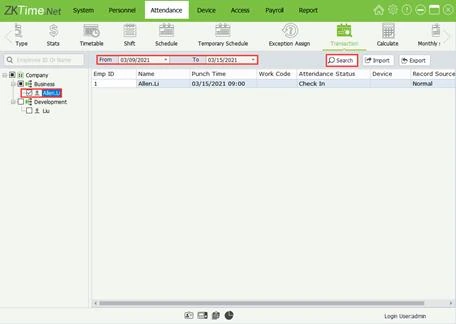
Open Device > Device, select the K40 Pro, click Get Transaction, choose the date range and wait for the progress pop-up. Then check Attendance > Transaction to confirm the punches arrived.
Key takeaways
- Download before you calculate.
- Choose a sensible date range.
- Check the transaction list afterwards.
- Do not clear the terminal until records are safe.
01Download
- Open Device > Device and select your K40 Pro.
- Click Get Transaction.
- Choose the date range (all new, or a custom range).
- Watch the pop-up in the bottom corner for progress.
- Wait for completion before closing the software.
02Check them
Go to Attendance > Transaction, choose the employees and dates, and click Search. You should see one line per punch with the employee, time and device. If lines are missing, see no records downloaded.
03How often
- Daily, if you pay daily-paid staff.
- Weekly for most offices.
- Before every payroll close, always.
Some versions can download automatically on a schedule when PUSH or auto-download settings are on.
04Why a download does not change the terminal
Get Transaction copies; it does not erase. The terminal keeps the punches until it is full or you clear them. See memory full.
05Next step
Run Calculate so the punches become hours, late and overtime.
06A typical scenario
A payroll officer downloaded punches only at month-end and found the terminal's memory had been nearly full. Weekly downloads, plus a check of the transaction list, removed the risk and made reports quicker.
Illustrative example based on common cases, not a named customer.
07Common mistakes
- Downloading with a narrow date range and missing days.
- Closing the software mid-download.
- Not checking the transaction list.
- Clearing the terminal first.
- Forgetting a second terminal.
08Quick checklist
- Test connection
- Choose date range
- Get Transaction
- Wait for completion
- Check the list
- Calculate
09Frequently asked questions
Can I download records automatically?
Some versions can. Look for an auto-download or push setting in the device options.
Why do I see duplicates?
The same punch can appear if downloaded twice; the software normally ignores exact duplicates. Check the transaction list.
Do I need to be on the same network?
Yes for TCP/IP. Otherwise use USB.
How do I download older records?
Choose a wider date range, as long as the terminal still holds them.
This guide is part of our ZKTeco K40 and ZKBio Time.Net series. For the full start-to-finish walkthrough with screenshots, read How to Configure a ZKTeco K40 Pro with ZKBio Time.Net.
ZKTeco and ZKBio are trademarks of ZKTeco Inc. Menu names on the K40 Pro and in the software vary slightly by firmware and software version; where yours differ, look for the nearest match. Qyvea is a ZKTeco reseller and installer in Kenya.
